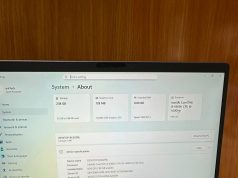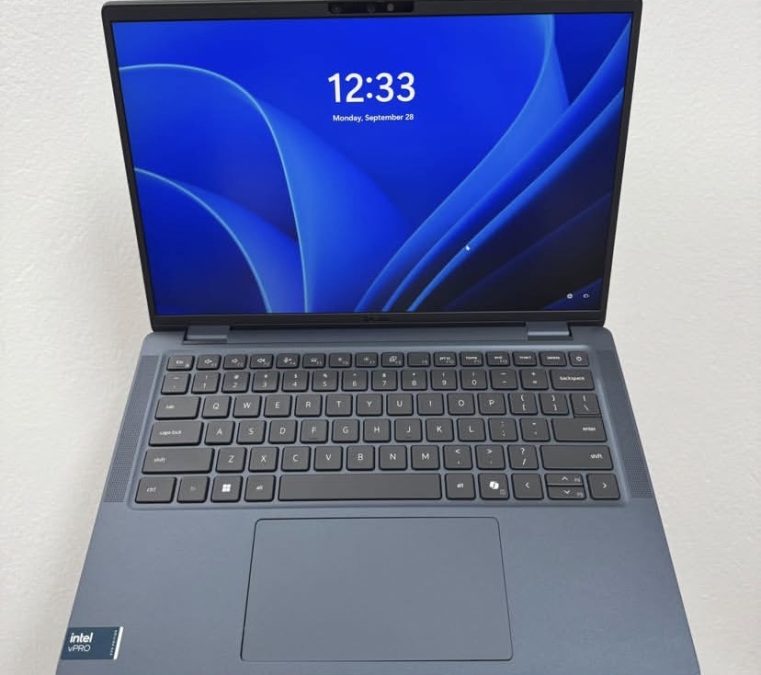
Building the right remote work setup in 2026 can help you work more efficiently, communicate professionally, and manage your responsibilities from almost anywhere. Whether you are a freelancer, content creator, software developer, virtual assistant, digital marketer, online entrepreneur, or full-time remote employee, having the right combination of computers, accessories, software, and internet connectivity can make everyday work considerably easier.
A productive remote workspace starts with choosing the right computer. Some professionals need a lightweight laptop for working while traveling, while others benefit from a desktop computer with a large monitor, more upgrade options, and additional processing power. Popular choices include the Apple MacBook Air and MacBook Pro, Lenovo ThinkPad, Dell business laptops, HP EliteBook, Microsoft Surface Laptop, and capable desktop PCs. The best option depends on your workload, budget, preferred operating system, and the applications you use.
However, a reliable computer is only one part of an effective remote-work environment. A comfortable desk and chair, an external monitor, a dependable keyboard and mouse, a quality headset, and suitable lighting can improve comfort during long working sessions. A stable internet connection is equally important for video meetings, cloud applications, file transfers, and collaboration with colleagues or clients. For professionals who frequently work outside the home, a mobile hotspot or backup internet connection can help reduce disruptions.
CHECK: AI Prompt Engineer vs Blockchain Developer: Which Career Is the Future of Remote Work?
Software is another essential consideration in 2026. Tools such as Microsoft 365, Google Workspace, Zoom, Slack, Notion, project-management platforms, cloud storage, and AI assistants can support communication, research, writing, scheduling, and task management. The most useful combination depends on your profession, team requirements, and existing workflow.
Security should also be part of the setup from day one. Strong passwords, multifactor authentication, regular software updates, encrypted Wi-Fi, reliable backups, and appropriate security tools help protect work files and accounts. Remote workers handling confidential business information should also follow their employer’s security requirements and use approved access methods.
Last researched: October 16, 2026
Most advice about a remote work setup starts with a shopping list. That is backwards. A good setup starts with a question: where will your body and your attention be for the next eight hours? A powerful laptop on a kitchen chair with the screen at chest height will produce a sore neck and a distracted afternoon, no matter what it cost. A modest machine on a well-arranged desk, with a reliable network and a decent microphone, will serve you better for years.
This guide builds a remote work setup in layers: the computer, the display, the input devices and furniture, the cables and power, the audio and video, the network and the security habits that protect your work. For each layer it explains what matters, what to buy first and what you can safely skip. It also separates what we could verify from what is general guidance, because product claims in this category are often exaggerated.
How this guide was researched
We did not run our own hands-on tests for this article. The laptop information comes from manufacturer specifications and independent reviews gathered on October 16, 2026. The monitor discussion draws on a July 2026 PCWorld roundup and one corroborating roundup. The ergonomics section draws on OSHA’s computer workstation guidance as relayed by OSHA-sourced material and a university safety office.
Two honest limits follow. First, many “best home office” articles online are affiliate pages that claim months of testing without evidence, and we avoided relying on them for facts. Second, we did not verify specific products for chairs, desks, webcams, headsets, routers, docks or keyboards well enough to recommend them by name. For those categories you will find selection criteria rather than model picks, and we say so each time. That is a deliberate editorial choice, not an omission.
The five layers of a remote work setup
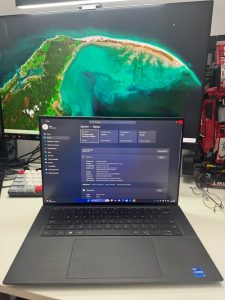
It helps to think of your setup as layers, ordered by how much each one affects your day.
- Comfort and posture. Desk, chair, monitor height, keyboard and mouse position. This determines whether you can work for hours without pain.
- Display. How much you can see at once and how sharp it is. This determines how fast you work and how tired your eyes feel.
- Computer. Performance, battery and compatibility. Important, but past a reasonable baseline it matters less than the first two layers.
- Connection. Network, power, cables and docking. This determines how reliable your day is.
- Communication and protection. Microphone, camera, security, backup. This determines how you come across and whether your work survives a failure or theft.
Most people spend their money in reverse order, buying the most expensive computer and ignoring the chair. Reversing that is the single most useful change you can make.
Laptop or desktop: choosing the core computer
For most remote workers the answer is a laptop, used with an external monitor and keyboard at home. A laptop gives you one machine for the desk, the sofa, the train and the occasional client visit. With a dock or a single USB-C cable, it behaves like a desktop when you sit down.
A desktop or compact mini computer makes sense in three cases: you never travel and want more performance per dollar, you run sustained heavy workloads such as video rendering or large builds, or you want a repairable machine you can upgrade over time. We did not verify specific desktop models for this article, so check current independent reviews if you go that route.
The practical rule: if you ever work away from your desk, buy a laptop and invest in the desk around it. If you never do, a desktop plus a good monitor often gives more capability for the money.
One point from OSHA’s workstation checklist is worth noting for laptop users: it says wrist posture and the duration of time on a laptop should be minimized, and it checks for a monitor adjustable so the top of the screen sits at or below eye level. A laptop’s built-in screen and keyboard are attached to each other, which makes both comfortable positions impossible at once. An external monitor and keyboard solve that problem.
Laptops worth considering in 2026
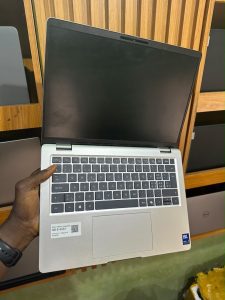
This section is a summary. We cover these models in depth in our dedicated laptop guide, Check Here. Figures are manufacturer-rated or reported by reviewers, not our measurements.
| Laptop | Platform | Reported starting price | Best fit |
|---|---|---|---|
| MacBook Air 13″ (M5) | Apple M5 | $1,099 | Browser and Microsoft 365 workers who want silence and battery |
| MacBook Air 15″ (M5) | Apple M5 | $1,299 | Same, with a larger screen for laptop-only work |
| ThinkPad X1 Carbon Gen 14 Aura Edition | Intel Panther Lake | About $2,139 (HotHardware) | Windows users who need business features and low weight |
| Dell XPS 14 (2026) | Intel Panther Lake | $1,349 to $1,599 depending on source | Windows users who want a strong display and performance |
| Surface Laptop 8th Edition | Snapdragon X2 | Varies by region | Battery-first users on mainstream software |
A few facts anchor the table. Apple announced the MacBook Air M5 on March 3, 2026, with a rated battery of up to 15 hours of web browsing and 18 hours of video streaming, and its base storage doubled to 512GB, according to Macworld. The Dell XPS 14 returned in 2026 on Intel’s Panther Lake platform with a 70Wh battery, and HotHardware notes that the OLED configuration trades some battery life for display quality.
The ThinkPad X1 Carbon Gen 14 uses a redesigned “Space Frame” chassis that reviewers say is easier to service. Reviewers of Snapdragon X2 laptops continue to flag app and peripheral compatibility and weak graphics as the main reasons for caution.
How to choose among them: pick the operating system your work requires first, then pick the machine. If you are free to choose, a MacBook Air is the lowest-risk choice for browser-based work. If your employer manages your device, ask IT which models are supported before spending your own money.
Memory and storage. For a multitasking professional, 16GB of memory is a sensible floor in 2026, and 32GB is worth it for heavy multitasking or local AI tools. Because most premium ultraportables solder memory to the board, you cannot add it later. This is editorial guidance rather than a tested threshold.
The monitor: the highest-impact upgrade
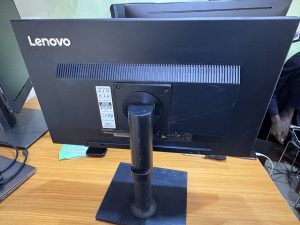
If you already own a capable laptop, an external monitor is the upgrade most likely to improve your day. It fixes posture, adds screen space and lets you use the laptop with the lid closed or as a second screen.
Size and resolution. A 27-inch 4K display is a safe starting point for most home offices, according to one July 2026 roundup. For office work, a refresh rate of 60 to 75Hz is typically fine, per another guide, so you do not need gaming-grade speed. Sharper text matters more than speed for reading, spreadsheets and code.
One cable. The feature that matters most for laptop users is USB-C with Power Delivery, sometimes via Thunderbolt. One cable carries video, data and charging. Check that the monitor’s charging wattage is enough for your laptop: a thin laptop with a modest adapter may be fine on 65W, while a powerful 14-inch machine may want more. Apple’s own 40W adapter for the M5 MacBook Air supports up to 60W, per the Apple Japan newsroom listing as reported by Gigazine, so a typical 65W monitor covers it. Verify your own laptop’s power requirement before buying.
What PCWorld recommends. In its July 8, 2026 home-office roundup, PCWorld names the Dell UltraSharp U3225QE as the best home-office monitor overall, describing excellent image quality and extensive connectivity, including Thunderbolt 4 and USB-C on a 4K IPS Black panel.
It names the Acer Vero B247Y G as the best budget option while noting that it has no USB ports and limited cable management. A separate roundup, which we treat with more caution because it is less transparent about methodology, also names the U3225QE as its pick for a setup built around one laptop that needs docking. We did not test either monitor.
Ultrawide versus two screens. A single large 4K screen is simpler and cleaner. Two monitors suit people who keep reference material open constantly. An ultrawide display replaces two side-by-side windows without a bezel in the middle, but it takes more desk depth. Choose based on your actual workflow rather than what looks impressive.
Mount it properly. A monitor arm is often more valuable than a slightly better panel, because it lets you set the height and distance exactly. Purdue’s ergonomics guidance notes that if you lack an adjustable monitor, you can simply raise it with books under the base, so the principle matters more than the hardware.
Docks, cables and power

A tidy, reliable connection layer prevents the small daily frictions that add up.
Use one dock or one monitor as the hub. The goal is to arrive at your desk, plug in one cable and have your monitor, keyboard, mouse, network and power connected. Some monitors include a USB hub and even Ethernet, which can serve as the dock. If your monitor does not, a separate USB-C or Thunderbolt dock does the job. We did not verify specific docks.
Match the standard to the laptop. Check which ports your laptop has. The MacBook Air M5 has two Thunderbolt 4 ports, MagSafe charging and a headphone jack, per Gigazine’s summary of Apple’s specifications, so it can charge through MagSafe while keeping both ports free for accessories.
Buy certified cables. A cheap USB-C cable may not carry video or enough power. Look for cables that state their data and power ratings, and keep one known-good cable for the desk.
Add power protection. A basic surge protector costs little and protects expensive equipment. If power cuts are common where you live, consider a small uninterruptible power supply for your router and, if you use a desktop, the computer itself. This is general guidance, not product-specific.
Ergonomics: desk, chair, keyboard and mouse

This layer is the least glamorous and the most valuable. The good news is that the core guidance is consistent and inexpensive to apply.
OSHA’s computer workstation guidance, as summarized in the Journal of Accountancy, recommends adjusting the top of the monitor to sit at or just below eye level, balancing the head and neck in line with the torso, keeping elbows close to the body and supported, supporting the lower back with relaxed shoulders, making adequate room for the keyboard and mouse, and resting the feet flat on the floor. OSHA’s checklist adds practical questions: is the seat height adjustable, does the backrest support the lower back, is there thigh clearance under the desk, and is a footrest provided if your feet do not reach the floor.
Monitor. Place it directly in front of you, not at an angle, at a distance that lets you read without leaning forward or back. A university safety guide advises avoiding glare by placing the screen at right angles to a window.
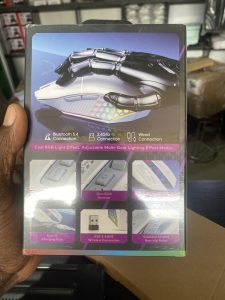
Keyboard and mouse. Keep the keyboard directly in front of you at a height that lets your elbows rest at your sides, and keep the mouse close to avoid reaching. A separate keyboard and mouse are essential if you use a laptop on a stand, because raising the laptop screen to eye level otherwise puts the keyboard too high.
Chair. Choose a chair with adjustable seat height, lumbar support and armrests that support your forearms. We did not verify specific chairs, and personal fit varies widely, so sit in one if you can or buy from a seller with a generous return policy.
Desk. A desk at a comfortable height with room under it for your thighs and legs matters more than any feature. A sit-stand desk can help you vary posture, but standing all day is not a solution either; the aim is movement and variation.
Breaks. Purdue’s guidance notes that OSHA recommends a 10-minute break for every hour spent at the computer. Treat that as a reasonable target rather than a strict rule, and note that “conventional ergonomics will not be right for everyone,” as one college guide cautions, so adjust to what feels comfortable. If you have persistent pain, see a qualified professional.
Lighting. Position your main light to reduce glare on the screen and use a lamp that lights the desk without shining into your eyes or the monitor. Adjust screen brightness to match the room.
Audio and video for calls
For many remote workers, how you sound is more important than how you look. A clear voice and a steady connection signal professionalism, and poor audio is more tiring for the people listening to you.
Microphone and headset. A headset with a boom or well-placed microphone usually beats a laptop’s built-in mic in a noisy room, because it sits closer to your mouth. Closed-back headphones also reduce echo and keep your own voice from feeding back. If you work in a shared space, noise cancellation on the microphone side matters more than on the listening side. We did not verify specific headsets.
Webcam. Built-in laptop cameras are adequate on many current models, but an external webcam placed at eye level is a more flattering and comfortable angle than a laptop camera looking up from a desk. We did not verify built-in webcam quality across the laptops above, so check recent camera tests for your model.
Light and background. Face a window or a soft lamp rather than sitting with a bright window behind you. A simple, tidy background is enough. Heavy virtual backgrounds can strain the processor and the battery on long calls.
Test before you rely on it. Record a short clip with your usual app and listen back. Many people discover echo, fan noise or low volume only after a client points it out.
Software and AI Productivity Stack
Hardware enables work; software multiplies it. Core collaboration platforms (Microsoft Teams, Zoom, Google Meet, Slack) remain central. In 2026 their built-in AI features for meeting summaries, action items, and transcription have become practical daily tools.
Dedicated AI assistants such as ChatGPT, Claude, Microsoft Copilot, or Google Gemini handle drafting, research, summarization, and analysis. Meeting-specific tools (Otter.ai, Fireflies, Fathom, or platform-native companions) reduce note-taking overhead. Calendar and focus tools (Reclaim.ai, Motion) protect deep-work blocks. Project and knowledge tools (Notion with AI, Asana, Linear, or similar) keep distributed teams aligned. Noise-cancellation software and async video tools (Loom) further reduce friction.
Select tools that integrate with existing workflows rather than multiplying logins. Start with free or low-cost tiers and expand only where clear time savings appear. Privacy considerations matter: prefer tools with transparent data policies, especially for client or sensitive work.
Security, Backup, and Reliability Considerations
Remote setups expand the attack surface. Enable full-disk encryption, strong authentication (passkeys, hardware keys, or biometrics plus multi-factor), and keep systems patched. Use a reputable VPN when on public networks. Maintain offline and cloud backups of critical files. Company-managed devices should follow organizational zero-trust and endpoint policies; individual professionals should apply equivalent discipline.
A secondary computing option (older laptop, tablet, or cloud desktop) and cellular data backup prevent total downtime during hardware or connectivity failures.
Sample Setups by Budget and Role
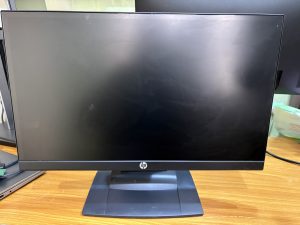
Minimum viable (~$300–500 beyond existing laptop): External 24-inch IPS monitor, basic wireless keyboard/mouse, quality headset, laptop stand, cable management. Focus on posture and call quality.
Comfortable professional (~$800–1,500): 27-inch 4K or QHD USB-C monitor, ergonomic keyboard and mouse, dedicated webcam or upgraded headset, monitor arm, dock or hub, improved lighting and chair upgrade if needed.
Premium / creator or power user: High-end laptop (MacBook Pro or equivalent Windows workstation), dual 27-inch or ultrawide display, Thunderbolt dock, studio-quality mic and camera, sit-stand desk, comprehensive AI and collaboration stack.
Travel-oriented hybrid: Lightweight ultraportable laptop, portable secondary monitor, compact dock or hub, noise-cancelling earbuds, and a small lighting kit.
Adjust priorities by role: developers may emphasize multi-monitor real estate and keyboard quality; client-facing roles prioritize camera, lighting, and audio; analysts benefit from large or dual screens and strong multitasking performance.
Conclusion
A high-performing remote work setup in 2026 is the product of deliberate choices across computing hardware, displays, audio-video tools, ergonomics, connectivity, and software.
The MacBook Air M5, ThinkPad X1 Carbon, Dell Pro and XPS lines, and capable Snapdragon Windows devices form strong foundations. Pairing them with a quality external monitor, proper docking, dedicated camera or audio, and thoughtful posture support yields outsized returns in comfort and output. AI-assisted tools further reduce administrative overhead and protect focus time.
Begin with the highest-impact gaps in your current environment—usually screen real estate, posture, and call quality—then layer additional capability as needs and budget allow. The goal is not maximal equipment but a reliable, low-friction system that supports sustained professional work from home or hybrid locations. As collaboration platforms, on-device AI, and peripheral ecosystems continue to evolve, the same principles of battery resilience, visual comfort, clear communication, and physical sustainability will remain the foundation of effective remote work.
For deeper guidance on specific emerging technologies that influence how we work—AI agents, next-generation connectivity, privacy tools, and more—explore the related resources on Web3FuturePro.com.
Sources & Citations
- Independent 2026 reviews and roundups from PCMag, RTINGS, StorageReview, Notebookcheck, and specialized remote-work publications covering laptops, monitors, webcams, and peripherals.
- Manufacturer specifications for current MacBook Air M5, ThinkPad X1 Carbon Gen 14, Dell Pro 7 / XPS 14, and related business and consumer lines.
- Productivity and AI tool overviews reflecting 2026 feature sets from Microsoft, Google, OpenAI, and specialized meeting and scheduling platforms.
- Ergonomics and home-office checklist guidance consistent with practical 2026 recommendations across career and technology sites.