Choosing the best laptops for remote work in 2026 can make a significant difference to your productivity, comfort, and ability to work from anywhere. Whether you are a freelance writer, software developer, digital marketer, virtual assistant, designer, online entrepreneur, or full-time remote employee, the right laptop should handle your daily workload without slowing you down.
Remote work requires more than a fast processor. A dependable laptop needs a comfortable keyboard for long writing sessions, enough memory for multitasking, a clear webcam for virtual meetings, reliable Wi-Fi, strong battery life, and sufficient storage for files and applications. Professionals who regularly travel or work from coworking spaces should also consider weight, charging options, display brightness, and durability.
Several laptop families stand out for different professional needs in 2026. The Apple MacBook Air and MacBook Pro are attractive options for people who value battery efficiency, portability, and performance. Windows users can consider the Lenovo ThinkPad, Dell XPS, HP EliteBook, Microsoft Surface Laptop, and ASUS Zenbook families, which cover a broad range of business, productivity, and creative workloads. Recent laptop testing also highlights newer options such as the HP OmniBook 7 Aero for mobile professionals and the Samsung Galaxy Book6 Ultra for users who need more powerful hardware.
This guide explores the best laptops for remote work in 2026, comparing leading options for overall productivity, business use, programming, content creation, video conferencing, portability, battery life, and value. It also explains which specifications matter most, helping professionals choose a laptop that fits their workflow and budget without paying for features they may never use.
Last researched: October 16, 2026
A remote worker’s laptop is not a gadget. It is the office, the meeting room, the filing cabinet and, on a bad day, the only thing standing between you and a missed deadline. That is why shopping for the best laptops for remote work is harder than it looks. The spec sheets all promise “all-day battery” and “AI-powered” features, yet the real questions are quieter: will it survive a six-hour stretch of video calls away from a socket, will the keyboard still feel good in month eighteen, and will your employer’s IT department let you use it at all?
2026 is an unusually interesting year to ask. Apple refreshed the MacBook Air with its M5 chip in March. Dell brought back the XPS name with Intel’s Panther Lake processors. Lenovo rebuilt the ThinkPad X1 Carbon around a new serviceable chassis. Microsoft’s Surface Laptop moved to Qualcomm’s Snapdragon X2 chips, which makes Windows on Arm a serious choice rather than an experiment. Three different processor families now compete for the same professional buyer, and each has different strengths.
This guide cuts through that. It explains what remote work actually demands from hardware, compares the leading platforms honestly, and recommends five laptops for different kinds of professionals, with the trade-offs stated plainly.
How this guide was researched (and what it is not)
Transparency first: we did not run our own hands-on lab tests for this article. The recommendations below synthesize manufacturer specifications, retailer listings and published reviews from independent outlets, including Notebookcheck, Tom’s Guide, HotHardware, Macworld and others, all linked in the source list. Where a figure comes from the manufacturer, we say so. Where reviewers disagree, we say that too.
Three limits are worth stating. First, many “best laptop” pages online are affiliate roundups that claim testing they never performed, and we found several in our research. We did not rely on them for specifications. Second, battery life numbers vary enormously with test method, so we treat them as ranges, not promises. Third, prices move weekly. The prices quoted here are launch or reported starting prices, not guarantees; check the retailer before buying.
We also did not verify specific budget laptops thoroughly enough to recommend them by name, so the budget advice in this guide is framed as specification guidance rather than model picks.
What remote work actually demands from a laptop

Office laptops live on a desk with a dock, a second monitor and reliable power. Remote work breaks all three assumptions. You might work from a kitchen table, a coworking space, a train or a client’s spare room. That shifts the priorities.
Real battery endurance. The useful question is not “how many hours does the box say?” but “how many hours of video calls, browser tabs and chat can I get at moderate brightness?” Calls are one of the more demanding everyday workloads because they combine the camera, microphone processing, network and screen at once. A laptop that lasts 15 hours of video playback may last far less in back-to-back meetings.
Consistent performance when unplugged. Some laptops, especially those with power-hungry chips, slow down on battery. Efficiency-focused designs tend to hold performance better away from the wall, which is a major reason Apple silicon and Snapdragon laptops attract remote workers.
A keyboard and display you can live with. You will spend thousands of hours looking at one screen and typing on one keyboard. A bright, sharp 16:10 display shows more of a document or spreadsheet than an older 16:9 panel, and a keyboard with decent travel reduces fatigue. These matter more over a year than a small benchmark lead.
Enough memory for a messy workday. Modern work means a browser with dozens of tabs, a video-call app, chat, a document editor and often a few AI assistants running at once. Memory shortage is one of the most common causes of a laptop feeling slow after a year.
Ports and external display support. Most remote workers eventually add a monitor, so a laptop that supports a dock or a single USB-C cable to the desk saves daily friction.
Security and manageability. If your employer issues or approves devices, features such as hardware encryption, a trusted platform module, fingerprint login and remote management matter as much as speed.
Service life and repairability. A laptop used for work is a multi-year purchase. Soldered memory and storage, a point we return to below, lock in your configuration on day one.
The three platforms competing in 2026
The biggest shift is not a single laptop but the processor families behind them. Each makes different trade-offs.
Apple silicon (M-series)
Apple designs its own chips and its own operating system, which lets it tune hardware and software together. The MacBook Air with the M5 chip was announced on March 3, 2026 and reached stores on March 11, per Apple’s announcement as reported by PhoneArena. Its strengths are fanless silent operation, strong battery efficiency and a mature software ecosystem. Its main constraints are macOS-only software, limited upgradeability, and a higher entry price than before.
Intel Panther Lake (Core Ultra Series 3)
Intel’s Panther Lake chips power the 2026 Dell XPS 14 and the ThinkPad X1 Carbon Gen 14. Reviewers describe a significant efficiency and integrated-graphics improvement over earlier Intel designs; Notebookcheck says Panther Lake in the XPS 14 comes close to the discrete GeForce RTX 4050 in performance without the extra weight or power demand. The upside is full compatibility with the x86 Windows software that businesses depend on. The trade-off, historically, has been shorter real-world battery life than Apple silicon, though Panther Lake narrows that gap in current reviews.
Qualcomm Snapdragon X2 (Windows on Arm)
Qualcomm’s second-generation Windows chips, including Snapdragon X2 Elite and X2 Plus, power Microsoft’s latest Surface Laptop and several partner designs. Qualcomm lists an 80 TOPS neural processing unit for the X2 Elite, well above Microsoft’s 40 TOPS Copilot+ PC baseline, according to an industry summary by The Gadgeteer.
Reviewers describe strong battery life and big CPU gains over the first generation, but they consistently flag the same caveats: occasional app and peripheral compatibility problems and weak gaming or graphics performance. One May 2026 test roundup summarizes it as a good fit if you mostly live in a browser and Microsoft Office.
The practical takeaway: Apple suits people who want the longest-lasting, quietest and most polished all-rounder; Intel Windows laptops suit people who need maximum software and enterprise compatibility; Snapdragon laptops suit battery-first users whose software is mainstream and Arm-compatible.
Quick comparison of our top picks
Figures below are manufacturer-rated or reported by reviewers, not our own measurements. “Rated battery” is the maker’s claim under its own test conditions.
| Laptop | Platform | Display | Rated or reported battery | Reported starting price | Main trade-off |
|---|---|---|---|---|---|
| MacBook Air 13″ (M5) | Apple M5 | 13.6″ Liquid Retina, 2560×1664, 500 nits | Up to 15 hrs web, 18 hrs video (Apple) | $1,099 | macOS only; sealed, non-upgradeable; notch |
| MacBook Air 15″ (M5) | Apple M5 | 15.3″ Liquid Retina | Same Apple ratings | $1,299 | Pricier; larger footprint |
| ThinkPad X1 Carbon Gen 14 Aura Edition | Intel Core Ultra (Panther Lake) | 14″ 2.8K OLED (as reviewed) | 58Wh battery; one review headline cites almost 24 hours in its own test | About $2,139 reported by HotHardware; review config about $2,830 | Expensive; flatter keys than older ThinkPads; soldered memory |
| Dell XPS 14 (2026) | Intel Core Ultra (Panther Lake) | 14″ IPS or tandem OLED option | 70Wh battery; reviewers call battery life strong | $1,349 to $1,599 reported, varies by source and configuration | Price rises quickly with OLED; reviewers note keyboard and screen-size compromises |
| Surface Laptop 8th Edition (13.8″ / 15″) | Snapdragon X2 Plus / Elite | 13.8″ and 15″ touchscreen; 15″ listed at 600 nits | Up to about 19 to 20 hrs (Microsoft, preproduction testing) | Varies by region and configuration | Some app and peripheral compatibility risk; weak graphics |
A fair reading of the table: no laptop wins every column. The cheapest verified entry here still starts above $1,000, which reflects the premium end of the market this guide targets.
The best laptops for remote work in 2026

MacBook Air 13-inch M5: best for most remote workers
For the largest group of remote professionals, writers, managers, consultants, marketers, analysts and developers working in cloud tools, the 13-inch MacBook Air with M5 is the safest recommendation.
The case rests on a combination rather than one standout feature. Apple rates the battery at up to 15 hours of wireless web browsing and up to 18 hours of video streaming, using a 53.8Wh battery that is the same size as last year’s model, per Macworld. The machine is fanless, so video calls and long writing sessions are silent. The 13.6-inch Liquid Retina display runs at 2560 x 1664 and 500 nits, with a notch, and the laptop weighs about 2.7 pounds. It includes two Thunderbolt 4 ports, MagSafe charging and a headphone jack, plus Wi-Fi 7 and Bluetooth 6 according to Macworld.
Pricing deserves nuance. The 13-inch model starts at $1,099, but base storage doubled to 512GB. Macworld notes that this is technically a cut on the 512GB model but, for buyers who only need less storage, an effective $100 increase on the entry model.
Who should buy it: people whose work happens in a browser, Microsoft 365 or Google Workspace, Slack, Zoom and similar mainstream tools, and who value silence, battery and resale value.
Who should skip it: anyone dependent on Windows-only software, or whose employer requires a Windows-managed device. Also skip it if you want to upgrade memory later; like earlier Airs, it is a sealed design.
Evidence note: Apple’s battery figures are manufacturer ratings. An independent test of the previous M4 Air reportedly landed around 14 hours 15 minutes, per Tom’s Guide’s comparison table; treat that as a rough guide to how real-world numbers differ from claims, not as an M5 measurement.
MacBook Air 15-inch M5: best for a larger screen without a heavy machine
The 15-inch version starts at $1,299 and uses a 66.5Wh battery with the same Apple battery ratings, per Macworld and Apple’s Japan newsroom listing. It is the same silent, fanless design in a larger frame.
Choose it if you spend your day in spreadsheets, side-by-side documents or design reviews and do not regularly use an external monitor. The extra screen area is noticeable, and for many people it replaces the need for a second display at home. The cost is $200 more and a bulkier bag.
Who should skip it: frequent flyers and commuters who care about weight, and anyone who always works at a desk with a monitor. In those cases the 13-inch model is the better value.
Lenovo ThinkPad X1 Carbon Gen 14 Aura Edition: best premium Windows laptop for business use
The X1 Carbon has been the benchmark business ultraportable for over a decade, and Gen 14 is a meaningful redesign rather than a spec bump. Lenovo calls the new chassis “Space Frame,” and its product manager described it to Techfinitive as the most significant X1 Carbon release since the first edition. Reviewers highlight a chassis that remains very light, starting at 2.15 pounds, while being easier to open and service than before.
The review configuration from Serious Insights paired an Intel Core Ultra 7 355 with 32GB of soldered memory, a 512GB SSD and a 14-inch 2.8K non-touch OLED display.
HotHardware reports pricing starting at $2,139, and Serious Insights priced its review configuration at about $2,830 on Lenovo’s configurator on September 24, 2026.
Notebookcheck’s review headline credits it with almost 24 hours of battery life, though we could not verify the test conditions, so treat that as a best-case figure. Techfinitive expected the 58Wh battery to last a demanding working day.
The criticisms are fair and specific. Serious Insights notes that the flatter keys lose some of the traditional ThinkPad feel. The price is high, and memory is soldered, so you must choose your RAM at purchase.
Who should buy it: professionals who travel, write heavily and need Windows, strong security options and enterprise management. It also suits buyers who value serviceability and a keyboard-first design.
Who should skip it: value-focused buyers. A MacBook Air or Dell XPS can match much of the everyday experience for less money.
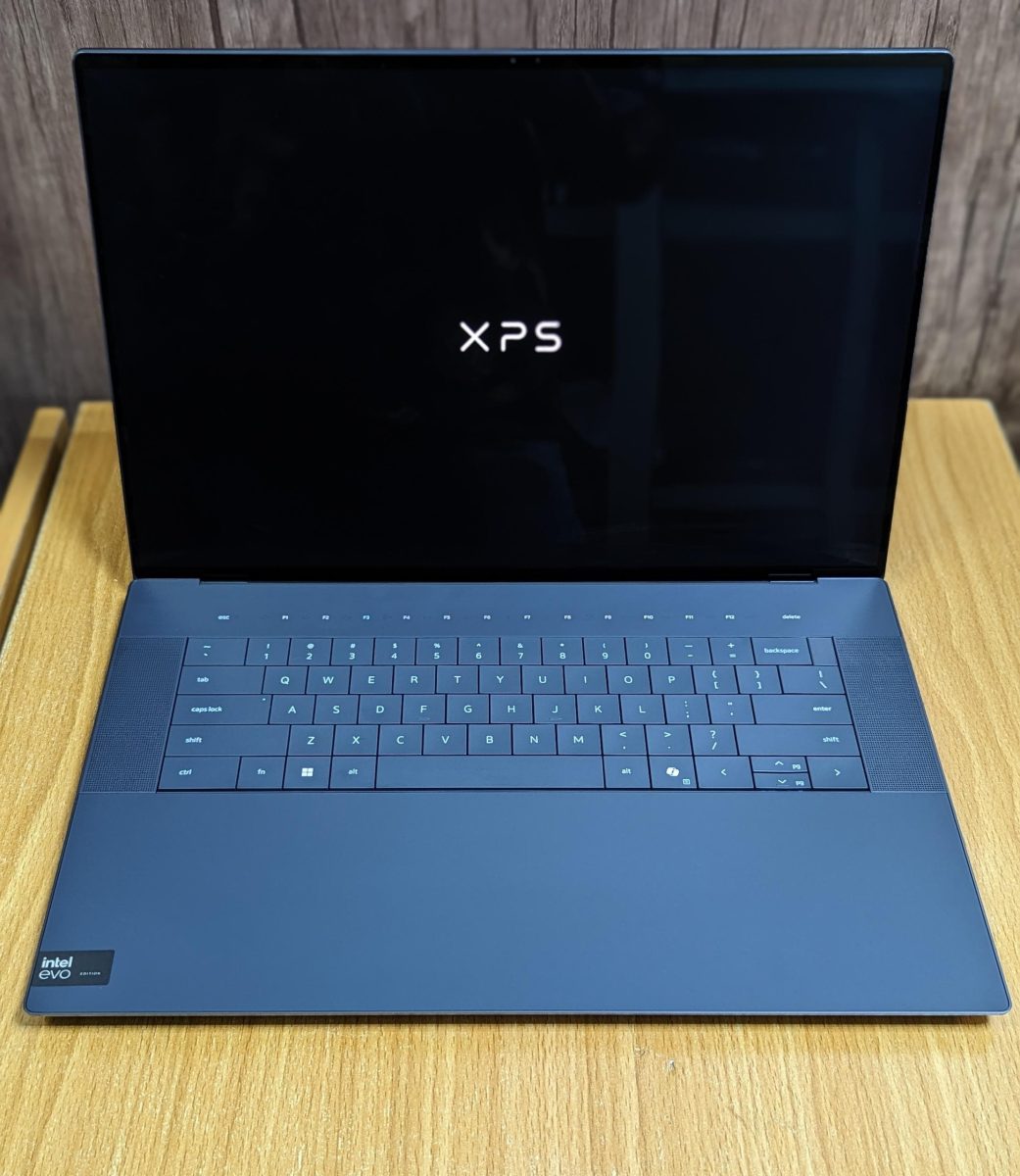
Dell XPS 14 (2026): best Windows all-rounder for display and performance
After a confusing period in which Dell moved away from the XPS name, the brand returned in 2026 with a redesigned XPS 14 on Intel’s Panther Lake platform. Tom’s Guide calls the laptop a welcome return for the brand and praises its practical design, OLED option, performance and battery life. Notebookcheck says the 2026 model is a much easier recommendation than recent predecessors.
The XPS 14 is offered with either a 1920 x 1200 IPS panel or a 2.8K tandem OLED display, per an overview of the reviews, and the battery is 70Wh. HotHardware notes that the OLED configuration trades some battery life for display quality, which is typical of OLED panels. On price, sources disagree: Tom’s Guide reports $1,599 to start, while HotHardware cites $1,349 for its starting configuration and $2,199 for the OLED unit it tested. The gap likely reflects different base configurations and promotions, which is exactly why you should check Dell’s current configurator.
Notebookcheck lists two cons worth knowing: the screen is smaller than the outgoing design’s, and a Ukrainian-language summary of the early reviews notes that keyboard feel remained a criticism.
Who should buy it: Windows users who want a bright, high-quality display and strong performance in a polished thin-and-light design.
Who should skip it: buyers who prioritize the lowest possible price or who prefer a classic ThinkPad keyboard.
Microsoft Surface Laptop (Snapdragon X2): best for battery-first, browser-and-Office work
Microsoft’s Surface Laptop 8th Edition is available in 13.8-inch and 15-inch sizes with Snapdragon X2 Plus or X2 Elite chips. Microsoft’s own store page states that its battery figures come from May 2026 testing on preproduction hardware, and retailers repeat ratings of roughly 19 to 20 hours. A Best Buy listing for the 15-inch model describes a 3K touchscreen at 600 nits, the brightest display ever on a Surface Laptop.
The reviews that matter most are the cautionary ones. A May 2026 roundup of X2 laptops says app compatibility, weak integrated graphics and occasional peripheral problems remain the main reasons for caution, while battery life is one of the strongest reasons to consider them. The Data#3 reseller note advises organizations to put one or two devices in front of users and test them for a normal working week before rolling out. That is sound advice for individuals too: if you use niche plug-ins, older drivers, VPN clients or specialized tools, test them before the return window closes.
Note also that Microsoft’s store page states that pen input is not supported on this model, so it is not a substitute for a Surface Pro if you annotate by hand.
Who should buy it: people who live in a browser, Office and Teams, want long unplugged runtime in a Windows machine and value a touchscreen.
Who should skip it: developers, engineers and creators who rely on specialized Windows software, drivers or gaming.
Specs that matter: RAM, storage, display, ports and webcam
This section is editorial guidance rather than product-specific testing, because the right numbers depend on your workload.
RAM. For general remote work, 16GB is a sensible floor in 2026, and 32GB is worth the premium if you keep many apps open, run virtual machines, work with large datasets or use local AI tools. Because most of the laptops above use soldered memory, you cannot add RAM later. Buying slightly more than you need is cheaper than replacing the laptop early.
Storage. 512GB is workable for cloud-centric workers, and the MacBook Air’s move to 512GB base storage reflects that. If you handle large video, design or code repositories locally, 1TB is more comfortable. External SSDs are a cheap workaround.
Display. Prioritize a 16:10 or 3:2 aspect ratio, brightness of at least 400 to 500 nits and, if you can afford it, a matte or low-reflection finish for varied lighting. OLED looks excellent but can cost battery life, as HotHardware noted for the XPS 14.
Ports and docking. Look for at least two USB-C or Thunderbolt ports so one can stay connected to a dock. The MacBook Air provides two Thunderbolt 4 ports plus MagSafe, so charging does not consume a port.
Webcam and microphones. Many spec sheets quote a webcam resolution and little else. We did not verify webcam quality across all five laptops, so check recent camera tests for the exact model. If your work is call-heavy, a dedicated external webcam and headset remain a cheap, reliable upgrade on any laptop.
Connectivity. Wi-Fi 7 is now appearing on current models, such as the MacBook Air M5. It only helps if your router also supports it, so do not pay extra for it by itself.
Budget guidance without model picks. If your budget is well below the prices above, prioritize 16GB of RAM, an SSD of at least 512GB, a 14-inch 16:10 display and a business-grade keyboard, and read recent independent reviews of the specific model before buying. We deliberately do not name budget laptops here because we did not verify them to the standard of the picks above.
How to read laptop battery claims

Battery numbers are the most abused statistic in laptop marketing, so a short guide is worthwhile.
Rated is not real. Manufacturers measure under controlled conditions: fixed brightness, a looping video or a scripted browsing routine. Apple’s “up to 18 hours of video streaming” and “up to 15 hours of wireless web” describe those tests. Microsoft says its Surface Laptop figures came from May 2026 testing on preproduction hardware and adds that battery life varies significantly with settings and usage. Treat every rating as a ceiling.
Test type matters. Video playback is gentle on a laptop. Web browsing is heavier. Video conferencing, with the camera on, background effects and screen sharing, is heavier still. When a reviewer reports a very high number, check whether it came from a light-load or video-loop test.
Display choice changes the result. OLED and high-refresh panels typically draw more power than a standard IPS display. HotHardware’s XPS 14 review makes exactly this point about the OLED configuration.
Battery size is only part of the story. The XPS 14 has a 70Wh battery and the ThinkPad X1 Carbon is expected to use 58Wh, according to Notebookcheck and Techfinitive respectively, yet efficiency of the chip, display and software tuning decide how long that capacity lasts. The MacBook Air’s 53.8Wh battery is smaller than both, and Apple still rates it at 18 hours of video, which shows how much efficiency matters.
A practical test. In your return window, run your actual workday: your usual browser tabs, your video-call app, chat and screen brightness you would really use. If it does not last the hours you need, return it. That one test is worth more than any rating.
Which laptop fits which remote worker
The scenarios below are hypothetical illustrations, not case studies of real buyers, designed to show how the trade-offs play out.
The traveling consultant. Spends four days a month on trains and planes, works in slides, spreadsheets and video calls, and rarely needs specialized software. The 13-inch MacBook Air M5 or the Surface Laptop 13.8-inch are the natural fits, because silence, light weight and long unplugged runtime matter most. If the client environment requires Windows-only tools, the ThinkPad X1 Carbon moves to the top.
The home-office developer. Runs containers, compilers and sometimes local AI models, usually plugged into a monitor. Memory and sustained performance matter more than battery. A MacBook Air with a higher memory configuration works for many developers, but heavy sustained workloads can favor machines with active cooling. A Windows developer may prefer the Dell XPS 14 or X1 Carbon with 32GB of RAM. We would avoid Windows on Arm for this role until you have confirmed that your toolchain, drivers and virtualization needs are supported.
The remote manager. Back-to-back video calls, documents, chat and email all day. A silent machine with strong microphones and a reliable webcam is worth more than raw performance. The MacBook Air 15-inch gives extra screen space for notes and call windows side by side.
The creative freelancer. Edits photos or video and cares about color and display quality. The XPS 14 with its OLED option is appealing on the Windows side, and the MacBook Air handles light creative work well, though sustained heavy rendering is outside the Air’s design intent. Because we did not verify creative benchmarks, check dedicated tests for your software before buying.
The employee on a company-managed fleet. The decision may already be made for you. If your IT team manages devices, the ThinkPad X1 Carbon and Surface Laptop for Business exist largely for this scenario. Ask IT which models are supported before buying anything yourself.
Security, IT policy and compatibility
Remote work moves company data onto home networks and personal travel bags, which raises the stakes for hardware security.
Encryption and login. Ensure full-disk encryption is enabled (FileVault on macOS, BitLocker or device encryption on Windows). Fingerprint or face login makes locking the screen frictionless, which improves real-world security habits.
Managed-device features. Business laptops often include remote management and a trusted platform module. A PCMag work-laptop guide notes that IT departments value fleet deployment and remote manageability features, such as those found on Intel vPro systems, which is part of why business lines like the ThinkPad persist.
Windows on Arm compatibility. If you consider a Snapdragon laptop, confirm that your VPN client, security software, printer drivers and any niche applications run natively or reliably under emulation. Reviewers say compatibility has improved since the first generation, but it remains the main caution.
Company policy. Some employers forbid personal devices for work or require specific operating systems. Check before you spend your own money.
Privacy of AI features. “AI PC” features such as on-device assistants and recall-style tools process personal data. Review what each feature stores and whether your employer permits it, especially if you handle client or regulated information.
Cost of ownership and when to buy
A $1,100 laptop that lasts five years costs $220 a year. A $2,800 laptop that lasts the same time costs $560. The difference should buy you something you will actually feel daily, such as a better display, lighter weight, a keyboard you love or a longer warranty. If it does not, the cheaper machine is the better purchase.
Several practical points help:
- • Configure for the future you. With soldered memory and storage, buy the RAM you will need in year three, not just today.
- • Check the warranty. Serious Insights notes the X1 Carbon includes a one-year warranty; business buyers can often extend coverage. Accidental-damage cover may be worth it for a machine that travels.
- • Budget for accessories. A dock, an external monitor, a decent headset and a laptop stand improve comfort more than a marginally faster chip. They also reduce the neck and wrist strain that comes with laptop-only work.
- • Watch the sales calendar. Late-November sales often discount recent models, but a new model with a better configuration can still be worth the full price. Compare the same configuration, not just the headline discount.
- • Understand the return window. A 14 to 30 day return period lets you test battery and compatibility in real conditions. Confirm the policy before checkout.
- • Be skeptical of too-good deals. Many low-priced listings online are older models, refurbished units or odd configurations. One roundup we reviewed recommended a renewed older MacBook at a very low price; such deals can be fine, but verify the chip generation and battery health before buying.
Frequently asked questions
What is the best laptop for remote work in 2026?
For most people, the 13-inch MacBook Air with M5 is the strongest all-round choice, thanks to silent fanless operation, strong rated battery life and a mature software ecosystem. If you need Windows, the ThinkPad X1 Carbon Gen 14 and Dell XPS 14 are the leading premium options based on published reviews.
Is a MacBook or a Windows laptop better for working from home?
Neither is universally better. A MacBook suits most browser-based and Microsoft 365 workflows and tends to be quiet and efficient. A Windows laptop is the safer choice if you rely on Windows-only software, enterprise device management or specific hardware peripherals.
How much RAM do I need for remote work?
16GB is a sensible minimum in 2026 for a multitasking professional. Choose 32GB if you run many applications, virtual machines, large files or local AI tools. Because most premium ultraportables use soldered memory, you cannot upgrade later.
Is Windows on Arm (Snapdragon X2) good enough for professionals?
It can be, if your work is mostly in a browser, Microsoft Office and mainstream apps. Reviewers praise the battery life and performance gains but continue to flag app and peripheral compatibility and weak graphics. Test your specific tools within the return window.
Do I need an OLED display?
No. OLED offers excellent contrast and color, which helps creative work and media, but it can reduce battery life, and for text-heavy work a good IPS panel is often enough.
How long should a work laptop last?
Many professionals plan for four to six years. Longevity depends on memory capacity, build quality, battery health and software support, so buy more RAM and storage than you need today.
Is a 13-inch or 15-inch laptop better for remote work?
The 13-inch is better for travel and portability, while the 15-inch gives more working space if you do not use an external monitor. If you regularly dock to a monitor, the smaller laptop is usually the better value.
Are “AI PC” features a reason to buy a laptop?
Not by themselves. Neural processing units can help with on-device tasks, but the everyday benefit today is modest compared with battery life, display, keyboard and reliability. Treat AI features as a bonus and check privacy settings.
Should I buy a refurbished laptop for remote work?
It can be a smart saving if the seller offers a clear warranty and battery-health information, and if the chip generation is still supported for several years. Avoid unverified listings with vague specifications.
The best laptop for remote work is the one that disappears into your day: it lasts through your calls, stays quiet, opens your tools without friction and never gives you a reason to think about it. In 2026 the evidence we reviewed points to a clear shortlist. The MacBook Air M5 is the strongest general recommendation.
The ThinkPad X1 Carbon Gen 14 and Dell XPS 14 lead for Windows users who need compatibility and premium design. The Snapdragon-powered Surface Laptop is compelling for battery-first users with mainstream software, provided you test compatibility first.
Before buying, match the laptop to your workload, configure memory for the long term, treat battery ratings as ceilings and use the return window to run your real workday. Prices, configurations and software support change quickly, so confirm current details with the manufacturer before you order.
Explore more practical technology guides on Web3FuturePro.com, including our coverage of AI tools and remote tech careers, to keep building a setup that supports your work.
Sources
URLs below are those returned during our October 16, 2026 research. Several are retailer or aggregator pages and are used only for the specific claims noted; primary manufacturer pages should be checked before publishing.
- MacBook Air has a new chip and a lower price, sort of. Macworld. Battery sizes and ratings, display specs, ports, pricing.
- Apple MacBook Air M5 release date, price, specs. PhoneArena. Announcement and availability dates.
- MacBook Air M5 revealed: Price, release date and all the upgrades. Tom’s Guide. Pricing and M4 comparison table.
- Apple unveils new MacBook Air with M5 (Apple Japan newsroom, via Gigazine). Chip core counts and 15-inch battery rating.
- Dell XPS 14 (2026) review: Call it a comeback. Tom’s Guide. Design, OLED option, price.
- Dell XPS 14 2026 review: Fully reborn with Intel Panther Lake X7. Notebookcheck. Performance, price, pros and cons.
- Dell XPS 14 (2026) Laptop Review: A Great Return To Form. HotHardware. Starting and as-tested pricing, OLED battery trade-off.
- Dell XPS 14 (2026) DA14260 specifications. Notebookcheck. 70Wh battery.
- Lenovo ThinkPad X1 Carbon Gen 14 Aura Edition Review. HotHardware. Starting and as-tested price.
- Lenovo ThinkPad X1 Carbon Gen 14 Review. Serious Insights. Review configuration, weight, keyboard critique, price on September 24, 2026.
- First look review: Lenovo ThinkPad X1 Carbon Gen 14 complete with Space Frame. Techfinitive. Lenovo executive quote, expected 58Wh battery.
- Lenovo ThinkPad X1 Carbon Gen 14 Series reviews. Notebookcheck. Review headline on battery life.
- Surface Laptop 13.8-inch (8th Edition). Microsoft Store (Australia). Testing disclosure (May 2026, preproduction), pen-support note.
- The Snapdragon X2 Surface Laptop lands. Data#3, June 18, 2026. Deployment advice.
- Microsoft Surface Laptop 15-inch, Snapdragon X2 Elite. Best Buy product listing. Display and battery claims (retailer, not independent).
- Snapdragon X2 Elite Laptops 2026, Why Wave Two Wins. The Gadgeteer. NPU figures and Copilot+ baseline.
- Qualcomm’s Snapdragon X2 Elite laptops bring major performance improvements. bestlaptop.deals, May 8, 2026. Compatibility and graphics caveats (lower-authority source; corroborated by Data#3).
- The Best Work Laptops. PCMag via Yahoo Tech. IT management features.